

Guide for teachers
Create classes, run live sessions, offer one-on-one time, set assignments and exams, and follow your students.
Who this guide is for
You teach on the platform. You build classes, deliver live sessions, mark work, and follow your students and your earnings.
Before you start
Open your organisation's site and select Sign In.
Enter your email and password. You arrive on your Dashboard.
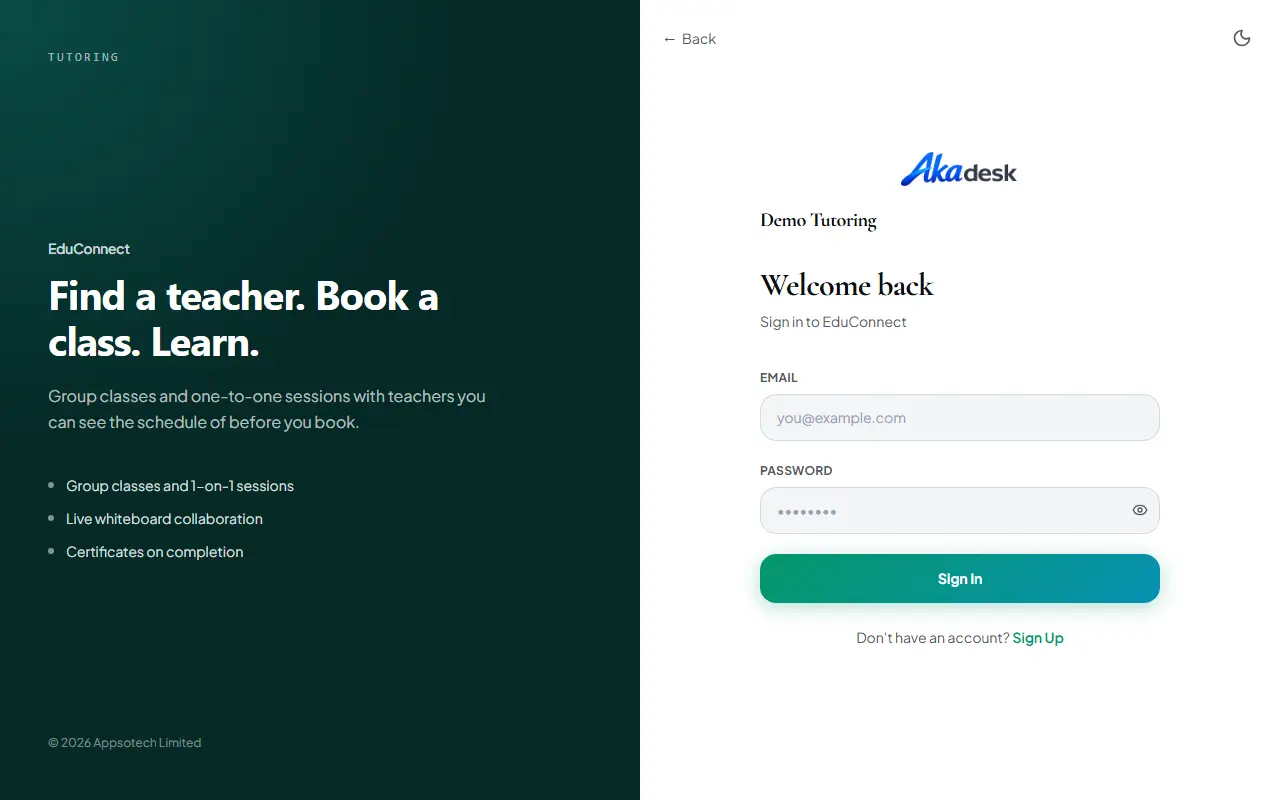
To join as a teacher, select Sign Up, choose Teacher, and add a phone number and a short bio. Your organisation approves new teachers, so you may have to wait for approval before you can publish.
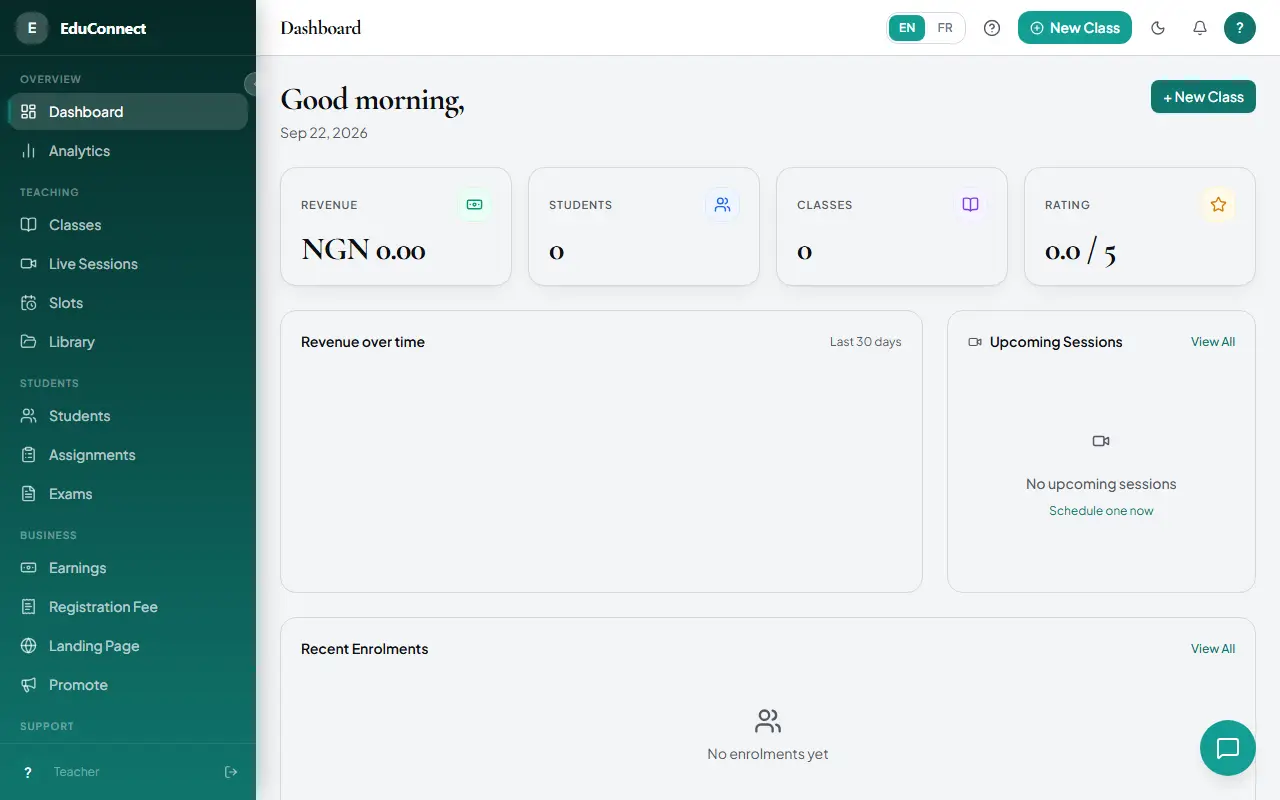
Get oriented: the Dashboard
The Dashboard shows your revenue, student, class and rating figures, a revenue chart, your upcoming live sessions (each with a Start button) and your recent enrolments.
Create a class
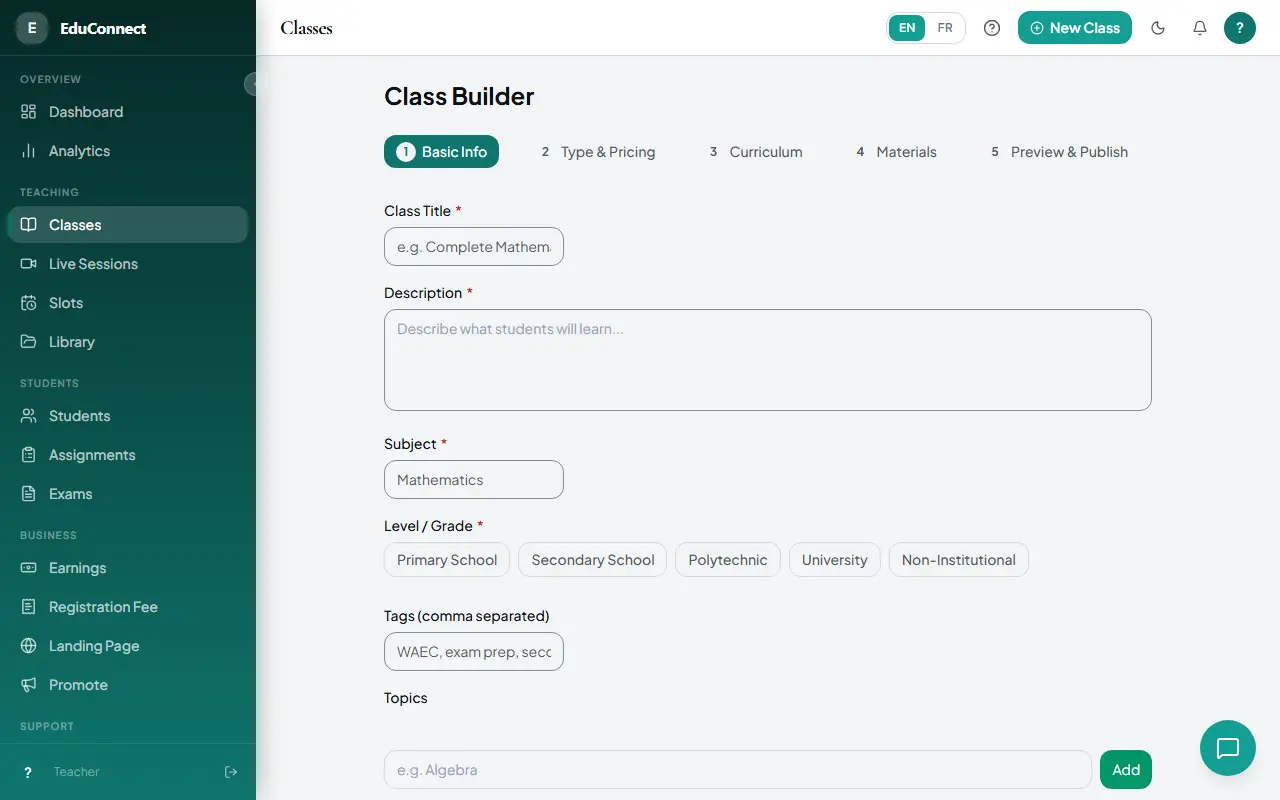
Select New Class to open the five-step builder.
Basic Info: title, description, subject, level, tags, topics, objectives and a thumbnail.
Type & Pricing: choose live, recorded, hybrid or one-on-one, and free, paid or subscription pricing.
Curriculum: add sections and lessons (for recorded and hybrid classes).
Materials, then Preview & Publish: select Save as Draft or Publish Class.
Your classes are listed under Classes, grouped into Published, Drafts and Archived. Open any class to see its Students, Sessions and Analytics tabs.
Run live sessions
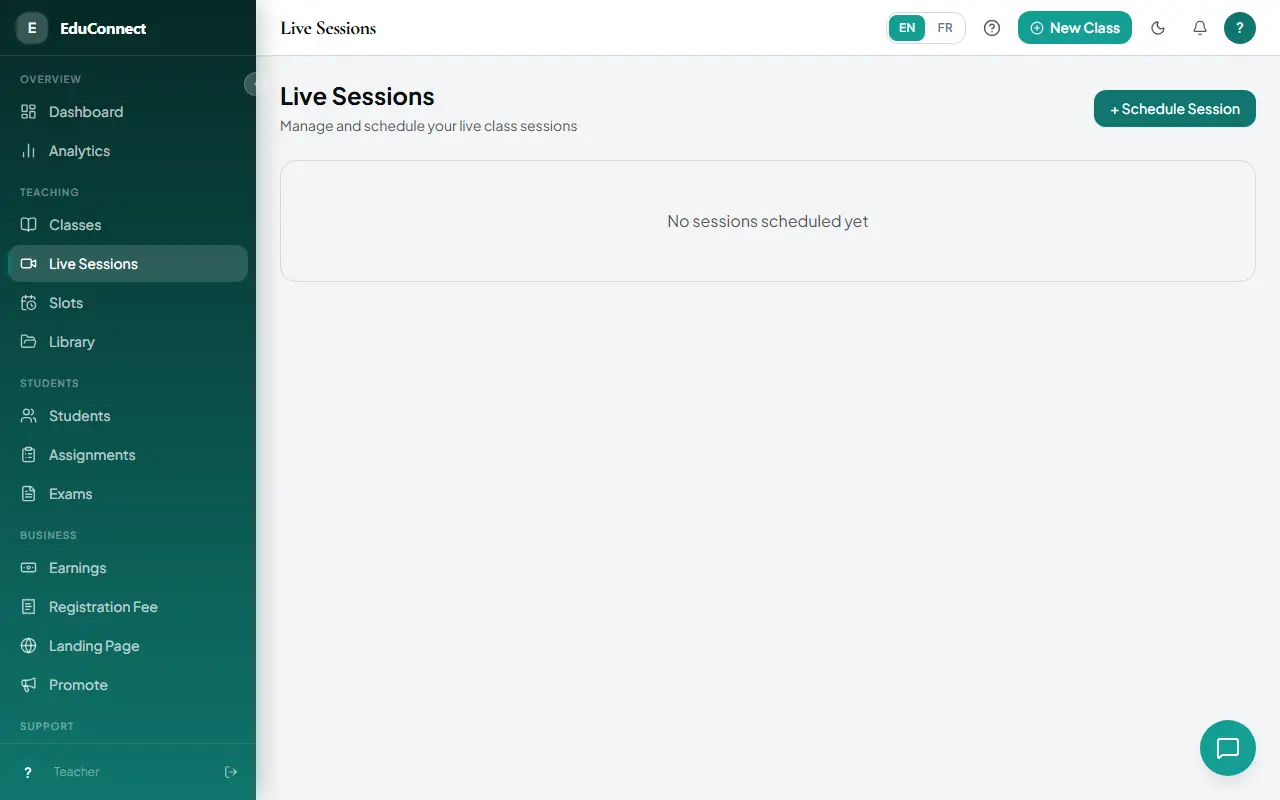
Open Live Sessions and select Schedule Session.
Choose the class, a title, the date and time, and the duration. Turn on Recording if you want one. A warning appears if the time clashes with another session or a one-on-one slot.
At the session time, select Start to open the classroom.
In the classroom you can:
Turn your microphone, camera and screen sharing on and off. Sharing your screen switches everyone to a focus layout.
Open Chat and People. Chat messages are saved for group sessions.
As host, mute or remove a participant, and see raised hands sorted to the top.
Select End Session to finish for everyone. This also stops the recording.
When a recording is ready, set who can see it: private, enrolled or public.
Offer one-on-one sessions
Open Slots and select Add Slot.
Set the start and end time, mark the slot Free or set a price, and add notes.
When a student books, select Start meeting at the scheduled time. Afterwards you can select View recording if you recorded it.
You can cancel any slot that nobody has booked.
Build your public page
Open Landing Page to edit your public microsite:
Hero: claim your handle, then set the headline, tagline, call to action, hero background and colour theme.
About: a bilingual bio with automatic translation, and your social links.
Classes: feature the classes you want to show first.
Sections: switch Gallery, Testimonials, FAQ and a Custom Block on or off.
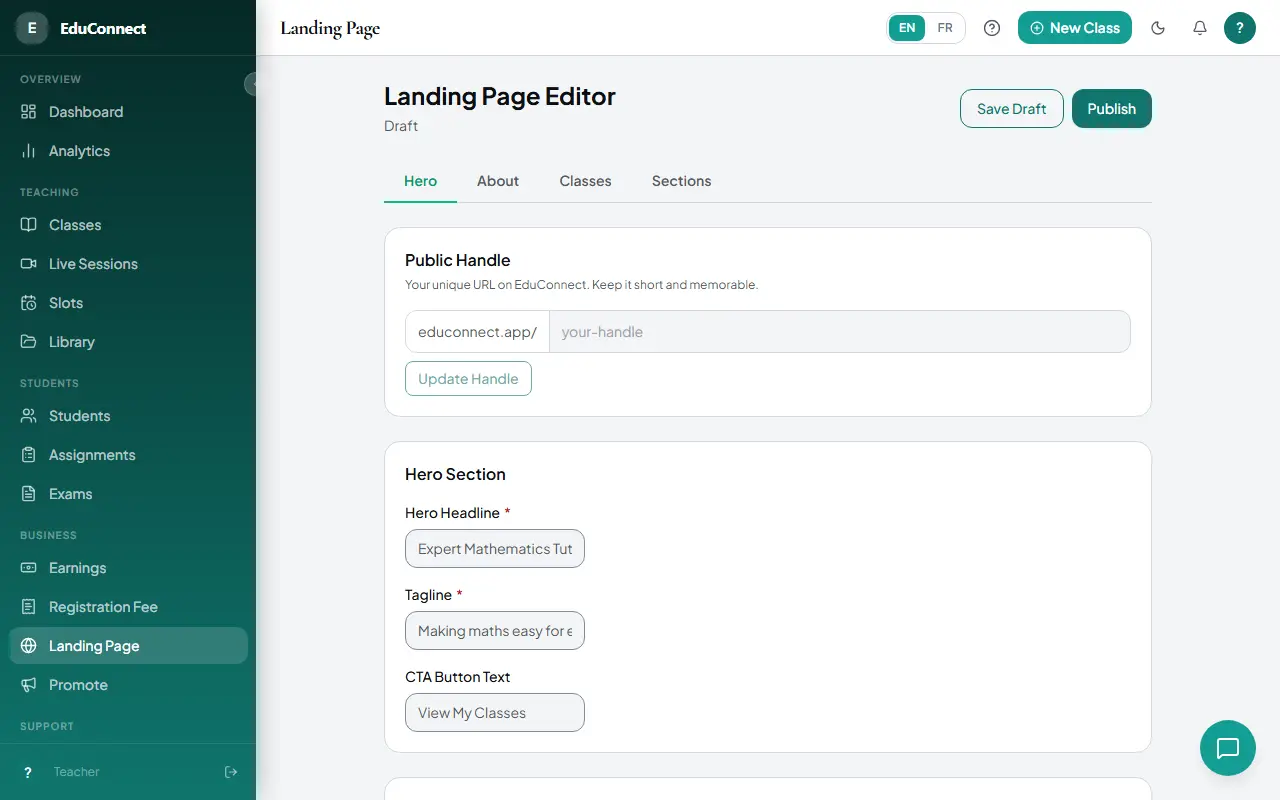
Select Save Draft or Publish. Your page is then live at your handle.
Set assignments and exams
Assignments: select New Assignment, choose the class, write the instructions, set the maximum points, the submission type (text, file or both), the due date and the late policy, then save a draft or publish. Open an assignment to see its submissions, and Grade each one with a score and feedback.
Exams: select New Exam, set the details (time limit, attempts and pass score), add questions (multiple choice, true/false or short answer) and publish. Open an exam to review attempts and per-question statistics.
Follow your students, earnings and analytics
Students shows your roster and each student's progress across your classes.
Earnings shows your gross, the platform fee, your net, your next payout and a transaction history. Payouts appear here automatically.
Analytics shows revenue trends, session attendance and, for each class, completion, watch time, drop-off and rating.
Promote your profile
Open Promote.
Choose a tier and a duration, then buy. You are taken to a secure checkout.
When you return, the boost shows as active with the days remaining. You can cancel a purchase that is still pending.
Manage materials
Open Library to upload files, reuse them across classes and delete them. You can also upload from a class's Materials tab.
Tips and common questions
A session clashes with another. The scheduler warns you. Change the time, or continue if the overlap is intended.
Who can see a recording? Whoever your visibility setting allows: private, enrolled or public.
Getting help
Open Guide for step-by-step help, or ask the AI assistant. It knows your classes, sessions, submissions to grade and earnings, and can walk you through any feature.
Try it yourself in the live demo.